
SocioLedger’s new Bulk Import Item Designs feature allows jewelry businesses to upload multiple ornament images and generate complete item designs in a single streamlined workflow. New stock from a supplier rarely arrives as a single piece — it typically comes as a whole batch of rings, earrings, pendants, or necklaces, each with its own weight, wastage, and specifications. By configuring shared supplier and category parameters once, jewelers can now turn stacks of supplier photographs into fully cataloged item designs without tedious one-by-one data entry.
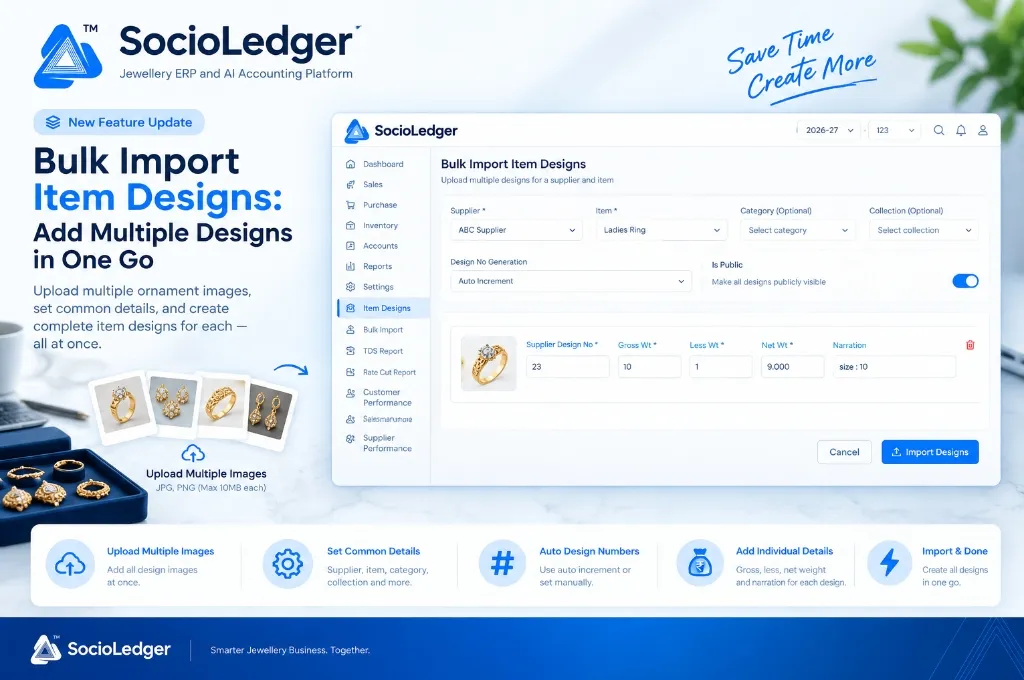
Table of contents
Open Table of contents
- Why batch design entry is critical for modern jewelry businesses
- The operational friction of single-item design creation
- What is Bulk Import Item Designs in SocioLedger?
- Key capabilities of Bulk Import Item Designs
- Why this matters for jewelry wholesalers and retailers
- How it works: step-by-step import workflow
- Traditional one-by-one entry vs. Bulk Import Item Designs
- Where to find Bulk Import Item Designs
- Turn supplier batches into live catalogs in minutes
Why batch design entry is critical for modern jewelry businesses
In bustling jewelry manufacturing and trading hubs like Zaveri Bazaar, Surat, Rajkot, and Karol Bagh, wholesale consignments and fresh manufacturer samples arrive in large lots. Whether receiving 20 new casted ring variations from an Ahmedabad workshop or 50 lightweight Italian chain patterns from a Mumbai vendor, entering new stock into software has traditionally been a time-consuming bottleneck.
Creating item designs one by one requires repeating identical setup fields over and over:
- Selecting the same supplier ledger dozens of times in a row
- Choosing the same item classification (such as Ladies Ring or Gents Kada) for each piece
- Re-tagging the same seasonal collection or design category
- Manually verifying or assigning sequence numbers for every individual piece
When a store or wholesale office receives hundreds of new ornament pieces every week, repeated manual entry slows down showroom cataloging, delays B2B sales outreach, and increases operator fatigue.
The operational friction of single-item design creation
Entering designs individually introduces subtle operational drag across wholesale and retail jewelry workflows:
1. Repetitive field selection and wasted counter hours
When an operator adds 30 new designs from a single supplier invoice, up to 70% of the entered information is identical across the batch. Having to open a new modal, select the supplier, pick the item type, assign categories, and save every single time turns a 5-minute task into an hour-long chore.
2. Manual design number assignment errors
Tracking design sequence numbers manually across large batches often leads to duplicate codes, skipped numbers, or numbering gaps. When multiple staff members add designs simultaneously, manual tracking quickly becomes chaotic.
3. Disconnected images and weight specifications
In fast-paced wholesale operations, photos are often taken in bulk on smartphones and stored in unsorted folders while weights are recorded on paper slips. Linking each image to its exact supplier design code, gross weight, less weight, and net weight requires constant back-and-forth cross-referencing.
4. Delayed digital catalog distribution
In today’s digital jewelry market, sharing new collections with VIP buyers and retail clients quickly is essential. When cataloging takes days due to slow administrative workflows, new designs sit idle in storage trays instead of being showcased to eager customers.
What is Bulk Import Item Designs in SocioLedger?
SocioLedger introduces Bulk Import Item Designs to eliminate repetitive setup steps and let jewelry businesses build comprehensive digital catalogs in minutes.
The feature splits item design setup into two logical layers:
- Shared batch header: Configure the supplier, item type, optional category, collection, design number generation method, and public visibility once for the entire batch.
- Individual design entries: Upload ornament images and specify the individual supplier design number, gross weight, less weight, net weight, and custom narration for each piece.
+-----------------------------------------------------------------------------+
|               SocioLedger Bulk Import Item Designs Architecture             |
+-----------------------------------------------------------------------------+
|                                                                             |
|   [ Shared Batch Settings (Set Once) ]                                      |
|   ┌─────────────────────────────────────────────────────────────────────┐   |
|   │ • Supplier Ledger (e.g. ABC Supplier)                               │   |
|   │ • Item Classification (e.g. Ladies Ring)                            │   |
|   │ • Category & Collection (Optional tags)                             │   |
|   │ • Design No Generation (Auto Increment / Manual)                    │   |
|   │ • Is Public Toggle (Showcase visibility)                            │   |
|   └──────────────────────────────────┬──────────────────────────────────┘   |
|                                      │                                      |
|                                      ▼ Applied Across All Rows              |
|   [ Per-Design Line Entries ]                                               |
|   ┌───────────────┬───────────────────┬──────────────┬───────────────┬────┐ |
|   │ Upload Image  │ Supplier Des. No  │ Gross Wt (g) │ Less Wt (g)   │Net │ |
|   ├───────────────┼───────────────────┼──────────────┼───────────────┼────┤ |
|   │ [Ring 1.jpg]  │ 23                │ 10.000       │ 1.000         │9.00│ |
|   │ [Ring 2.jpg]  │ 24                │ 12.500       │ 1.200         │11.3│ |
|   │ [Ring 3.jpg]  │ 25                │ 8.750        │ 0.850         │7.90│ |
|   │ ... + Add Row │ ...               │ ...          │ ...           │... │ |
|   └───────────────┴───────────────────┴──────────────┴───────────────┴────┘ |
|                                      │                                      |
|                                      ▼ One-Click Action                     |
|   ┌─────────────────────────────────────────────────────────────────────┐   |
|   │       [ Import Designs ] -> Creates Full Product Catalog Records    │   |
|   └─────────────────────────────────────────────────────────────────────┘   |
+-----------------------------------------------------------------------------+
Key capabilities of Bulk Import Item Designs
Shared master settings across the batch
Instead of re-entering master configurations for every ornament, you define the core attributes at the top of the screen:
- Supplier ledger: Select the vendor or manufacturer who supplied the batch.
- Item type: Choose the exact item category, such as Ladies Ring, Tanmaniya, Antique Bangle, or Solitaire Pendant.
- Category & collection (optional): Tag designs under specific collections (like Temple Jewelry or Lightweight Daily Wear) for organized filtering.
- Design No Generation: Choose Auto Increment to have design numbers generated automatically in sequence, or set them manually if you prefer custom codes.
- Is Public toggle: Control whether imported designs should be immediately visible in your public digital catalog and customer-facing showcases.
Precision weight tracking and visual attachments per design
Under the shared header, each row captures the unique physical attributes of that specific ornament:
- Ornament photo: Upload clear product photos directly into the row to create a visual record for every design.
- Supplier design number: Record the manufacturer’s original model or reference number for seamless reordering.
- Gross, less, and net weight: Enter the gross weight and stone or enamel less weight; the system automatically calculates the net gold or silver weight with three-decimal precision.
- Custom narration: Add specific details such as ring size (e.g.,
size: 10), rhodium finish, diamond clarity, or custom customer notes.
Why this matters for jewelry wholesalers and retailers
Bulk importing item designs provides clear operational and commercial advantages for growing jewelry businesses:
- Set common details once — Supplier, item, category, and collection don’t need to be re-entered for every single design in the batch.
- Faster catalog building — A whole batch of new designs can be added in one sitting, rather than one-by-one entries that eat up time.
- Auto-generated design numbers — With Auto Increment, you don’t have to manually track and assign the next design number yourself.
- Visual and accurate — Each design carries its own image alongside its exact gross, less, and net weight, so records stay precise even across a large batch.
- Flexible visibility — The Is Public toggle lets you control whether the whole batch is publicly visible right from import.
How it works: step-by-step import workflow
Using Bulk Import Item Designs in SocioLedger is straightforward and fast:
- Open Bulk Import Item Designs: Navigate to the Item Designs module and select Bulk Import Item Designs.
- Select Supplier and Item: Choose the supplier ledger and the item type (such as Ladies Ring) that applies across the batch.
- Set optional details: Pick a Category or Collection if relevant, choose your preferred Design No Generation method (Auto Increment or Manual), and toggle Is Public based on whether the batch should be publicly visible.
- Add each design: Upload the ornament image, then enter the Supplier Design No, Gross Wt, Less Wt, Net Wt, and any Narration notes.
- Repeat for every piece: Keep adding rows for every piece in the batch under the shared batch header.
- Click Import Designs: Click the primary blue Import Designs button — all designs are created at once, fully set up and ready to use.
Traditional one-by-one entry vs. Bulk Import Item Designs
Here is how the new unified batch import compares to traditional manual cataloging:
| Workflow Parameter | Traditional One-by-One Entry | Bulk Import Item Designs in SocioLedger |
|---|---|---|
| Supplier & Item Setup | Re-selected for every individual design | Set once for the entire batch |
| Design Numbering | Manual checking and error-prone tracking | Automated sequence via Auto Increment |
| Image Upload | Separate modal and upload per piece | Direct row-by-row batch image upload |
| Catalog Visibility | Toggled individually on each record | Global batch toggle via Is Public switch |
| Batch Time (20 Designs) | 25–40 minutes of repetitive clicks | 3–5 minutes of continuous data entry |
| Weight Breakdown | Fragmented entry across multiple tabs | Inline Gross, Less, and Net weight inputs |
Where to find Bulk Import Item Designs
Look for Bulk Import Item Designs under the Item Designs section in your SocioLedger workspace. It is built for exactly this scenario — a new batch of designs from a supplier, ready to be added together instead of individually.
Turn supplier batches into live catalogs in minutes
New stock shouldn’t mean hours of repetitive data entry. By separating what’s common across a batch from what’s unique to each piece, Bulk Import Item Designs lets jewelers turn a stack of supplier images into a complete, organized set of item designs in a fraction of the time.
Have another bulk process that could be faster? Tell us — contact our team and we’ll look into it.