
Creating a tag during inbound stock entry is usually a fast-paced job. When fresh ornaments arrive from karigars and manufacturing workshops in Zaveri Bazaar, Surat, or Rajkot, your team’s immediate priority is checking gross weights, printing barcode tags, and moving pieces safely into the vault. Nobody wants to halt the receiving line to take studio photos or deliberate over which collection an ornament belongs to. Yet, a tag with no photo, collection, or category is harder to search, harder to show to walk-in clients, and difficult to organize. SocioLedger’s dedicated Tag Media module solves this bottleneck by giving jewelers a focused screen to complete that work after the tag has already been created.
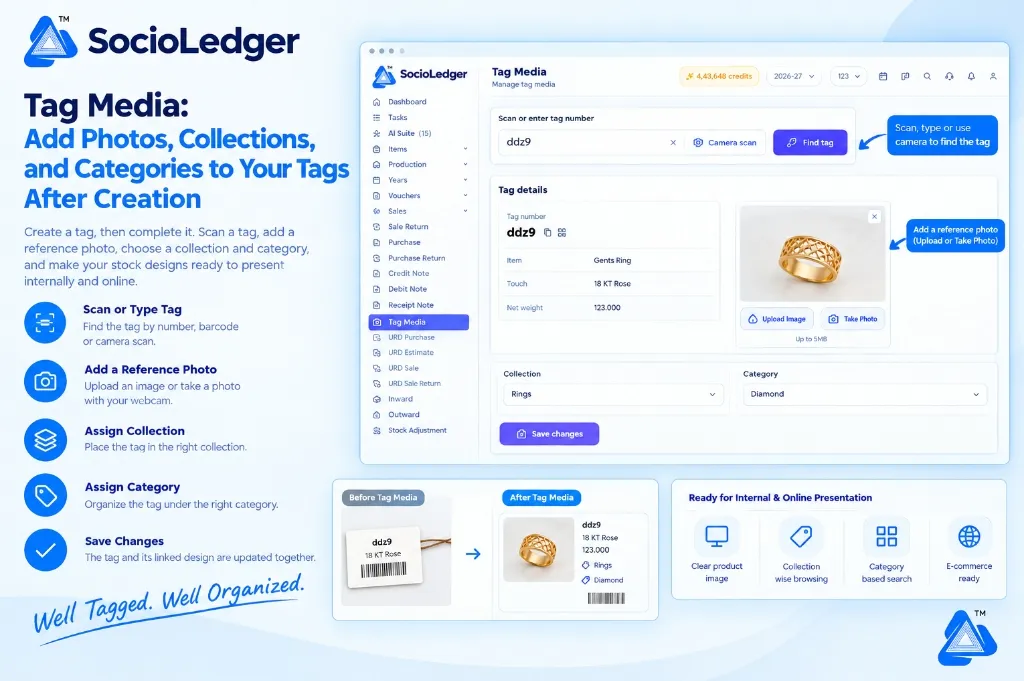
Table of contents
Open Table of contents
- Why separating tag creation from tag enrichment matters
- What’s new in the Tag Media module
- The tag and its design stay in sync
- E-commerce-ready stock designs for internal and online presentation
- Why this matters for jewelry businesses
- Comparison: Traditional tag management vs. SocioLedger Tag Media
- How it works: Step-by-step tag enrichment
- Where to find the Tag Media module
- Part of SocioLedger’s integrated inventory and tagging suite
- Organized stock, tag by tag
Why separating tag creation from tag enrichment matters
In active jewelry showrooms and wholesale operations, stock intake happens in bursts. During pre-festive restocking before Dhanteras or wedding season buying runs, dozens of parcels arrive simultaneously. Counter staff and inventory managers must weigh each item, verify metal purity touches (like 18 KT or 22 KT), generate barcode labels, and store the inventory quickly.
Forcing staff to capture professional photos and assign marketing classifications during this rush creates friction:
- Receiving bottlenecks: Setting up lighting, shooting angles, and cropping images while parcels sit unverified slows down stock intake.
- Skipped classifications: When pressed for time, staff skip optional metadata fields like collections and categories, resulting in blank records.
- Lost visual context: Ornaments stored in trays or vaults become identifiable only by barcode string and net weight, forcing staff to pull out physical trays whenever a buyer asks for a specific design.
- Catalogue delays: Without reference images and grouped categories, items cannot be listed in showroom lookbooks or shared over WhatsApp with remote wholesale buyers.
Tag enrichment should not compete with inventory intake. Decoupling the physical tag creation from media capture allows each step to happen when your team is ready.
+-----------------------------------------------------------------------------+
|              Traditional Intake Bottleneck (All-in-One Burden)              |
+-----------------------------------------------------------------------------+
|                                                                             |
|   New Inbound Stock Arrives ──► Weight & Purity Check                       |
|                                       │                                     |
|                                       ▼                                     |
|                 Tag Creation Screen Paused for Media:                       |
|                 ├── Search / Assign Collection & Category                   |
|                 ├── Photograph Piece under Lights                           |
|                 └── Wait for File Upload Before Printing Tag                |
|                                       │                                     |
|   Result: Stock intake slows down, or staff skip photos completely.         |
|           Tags end up in vaults as plain barcodes with zero visual context. |
|                                                                             |
+-----------------------------------------------------------------------------+
|         SocioLedger Decoupled Workflow (Fast Tagging, Flexible Enrichment)  |
+-----------------------------------------------------------------------------+
|                                                                             |
|   Phase 1: Inbound Stock Intake (Speed First)                               |
|   ├── Receive piece ──► Verify weights ──► Print Barcode Tag                |
|   └── Stock is immediately secured and recorded in minutes                  |
|                                                                             |
|   Phase 2: Tag Media Enrichment (At Your Own Pace)                          |
|   ├── Open [ Tag Media ] Screen                                             |
|   ├── Scan Barcode / Camera Scan (e.g. tag "ddz9")                          |
|   ├── Verify piece details: Gents Ring | 18 KT Rose | 123.000 g             |
|   ├── Snap Webcam Shot or Upload Reference Image (up to 5MB)                |
|   ├── Assign Collection [ Rings ] & Category [ Diamond ]                    |
|   └── Click [ Save changes ] ──► Tag & Linked Design Sync Automatically     |
|                                                                             |
|   Result: Rapid intake combined with a complete, browsable digital catalog. |
+-----------------------------------------------------------------------------+
What’s new in the Tag Media module
The Tag Media module is a simple, purpose-built screen designed specifically for enriching tags that already exist in your system. The entire workflow takes less than a minute per piece: scan the tag number, confirm the piece details, attach a photo, pick your collection and category, and hit save.
On the Tag Media screen, you can:
- Find the tag effortlessly: Type the tag number directly, scan the printed barcode with a handheld scanner, or turn on Camera scan to read the barcode through your device camera, then click Find tag.
- Check the tag details: The tag number, item name, touch purity, and net weight display instantly, letting you verify that the piece in your hand matches the digital record.
- Add a reference photo: Select Upload Image to drag and drop or browse for an existing image file, or choose Take Photo to capture a fresh picture directly with your connected webcam or tablet camera. Images up to 5MB are supported.
- Assign a collection: Group the tag under a curated collection (such as bridal sets, temple jewelry, or rose gold bands).
- Assign a category: Classify the piece under the right functional category (such as rings, necklaces, or bangles).
- Save changes together: Click Save changes, and the photo, collection, and category are securely saved to the tag.
+-------------------------------------------------------------------------------------------------------+
|  Tag Media > Manage tag media                                                    [ 4,43,648 credits ] |
+-------------------------------------------------------------------------------------------------------+
|                                                                                                       |
|  Scan or enter tag number                                                                             |
|  ┌───────────────────────────────────────────────┬───────────────────┬─────────────────────────────┐  |
|  │ ddz9                                       [×]│ [📷 Camera scan]  │ [ 🔎 Find tag ]             │  |
|  └───────────────────────────────────────────────┴───────────────────┴─────────────────────────────┘  |
|                                                                                      ▲                |
|                                                                                      │ (Click finds)  |
|  Tag details                                                                                          |
|  ┌───────────────────────────────────────────────────┬─────────────────────────────────────────────┐  |
|  │ Tag number                                        │ Reference Photo                             │  |
|  │ ddz9  [ 🔲 QR ] [ 📋 ]                            │ ┌─────────────────────────────────────────┐ │  |
|  │                                                   │ │                                         │ │  |
|  │ Item           Gents Ring                         │ │     [ 💍 Gold Lattice Band Photo ]      │ │  |
|  │                                                   │ │                                         │ │  |
|  │ Touch          18 KT Rose                         │ └─────────────────────────────────────────┘ │  |
|  │                                                   │ [ 📤 Upload Image ]    [ 📷 Take Photo ]    │  |
|  │ Net weight     123.000                            │               (Max file size: 5MB)          │  |
|  │                                                   │                                             │  |
|  ├───────────────────────────────────────────────────┴─────────────────────────────────────────────┤  |
|  │ Collection                                        Category                                      │  |
|  │ [ Rings                                        ▼] [ Diamond                                  ▼] │  |
|  │                                                                                                 │  |
|  │ [ 💾 Save changes ]                                                                             │  |
|  └─────────────────────────────────────────────────────────────────────────────────────────────────┘  |
|                                                                                                       |
|  ┌───────────────────────────────┐              ┌──────────────────────────────────────────────────┐  |
|  │ BEFORE TAG MEDIA              │              │ AFTER TAG MEDIA                                  │  |
|  │ ┌───────────────────────────┐ │              │ ┌───────────────────────────┬──────────────────┐ │  |
|  │ │ ddz9                      │ │              │ │ [ Photo: Lattice Ring ]   │ ddz9             │ │  |
|  │ │ 18 KT Rose                │ │   ──────►    │ │                           │ 18 KT Rose       │ │  |
|  │ │ ||||||||||||||||||||||||| │ │              │ │                           │ 123.000 g        │ │  |
|  │ │ (Plain text barcode tag)  │ │              │ │                           │ 🏷️ Rings         │ │  |
|  │ └───────────────────────────┘ │              │ │                           │ 🏷️ Diamond       │ │  |
|  │ Plain barcode, no photo,      │              │ └───────────────────────────┴──────────────────┘ │  |
|  │ hard to browse or present     │              │ Digital catalog asset: ready for counter & web   │  |
|  └───────────────────────────────┘              └──────────────────────────────────────────────────┘  |
+-------------------------------------------------------------------------------------------------------+
The tag and its design stay in sync
In SocioLedger, physical barcode tags link directly to master design records. When you enrich a tag inside Tag Media, you do not have to duplicate the update inside your design catalog.
When you click Save changes, the system updates the tag and its linked design simultaneously:
- Unified design master: The reference photo you attach to the tag carries over to the linked stock design record.
- Consistent taxonomy: The assigned collection and category automatically propagate across your design inventory.
- Zero double data entry: Counter staff update the tag once, and wholesale or retail catalogs reflect the change immediately.
This automatic synchronization ensures that your showroom floor inventory and your backend catalog stay identical at all times.
E-commerce-ready stock designs for internal and online presentation
A finished stock design with a crisp photo, named collection, and precise category functions like an e-commerce product card. It has an image, sits inside an intuitive product hierarchy, and is easy to browse. Tag Media turns raw inventory records into polished presentation assets:
For internal showroom presentation
When walk-in customers request specific styles — like lightweight daily-wear earrings or antique bridal chokers — sales executives do not need to pull open heavy vault trays. Staff can filter by collection or category on a showroom tablet, pull up the piece with its reference photo beside the net weight and purity touch, and present options immediately.
For online client presentation
Modern retail and B2B buyers frequently request digital lookbooks over WhatsApp or online portals before visiting your store. With Tag Media, your stock is ready for client-facing presentation. Instead of sending bare numbers or unorganized lists, you share structured catalogs with clear ornament images, defined collections, and transparent weights.
Preparing each piece once serves both showroom sales and digital presentations without extra work.
Why this matters for jewelry businesses
Enriching tags through a dedicated screen brings tangible operational benefits to jewelry retail showrooms and wholesale houses:
1. Stock ready to present anywhere
Attaching a photo, collection, and category turns an ordinary barcode into an attractive design asset ready for counter tablets, client lookbooks, and digital marketing.
2. Complete tags on your own schedule
Create tags rapidly during intake to keep goods moving into safe storage, then enrich them with photography and classifications during quiet counter hours or dedicated cataloging shifts.
3. A reliable visual record for every piece
Jewelry ornaments feature distinct craftsmanship — filigree carvings, stone settings, and clasp types. Storing a high-resolution photo on the tag prevents confusion and helps staff identify pieces without opening display packaging.
4. Effortless browsing by collection and category
Organizing stock into structured collections (such as Festive 2026 or Diamond Solitaires) makes filtering inventory effortless during customer consultations and seasonal stock audits.
5. Instant two-way synchronization
Updating the tag updates the linked design in real time, eliminating duplicate record maintenance across separate inventory screens.
6. Fast scanning and lookup
Scan tags using standard barcode scanners, type numbers with automatic auto-complete, or use built-in camera scanning to retrieve records in seconds.
7. Dual image capture methods
Snap photos instantly using a connected desktop webcam or mobile camera via Take Photo, or upload studio-edited files up to 5MB using Upload Image.
Comparison: Traditional tag management vs. SocioLedger Tag Media
| Operational Factor | Traditional Tag Creation Flow | SocioLedger Tag Media Module |
|---|---|---|
| Intake Speed | Slowed down by photo capture and classification | Fast intake: weigh and print tags in seconds |
| Media Capture | Clunky manual photo uploads or skipped entirely | Live webcam capture or direct drag-and-drop upload |
| Enrichment Timing | Must be completed at tag creation | Flexible: enrich anytime after tags are printed |
| Design Sync | Requires updating designs separately | Tag and linked design update in a single save |
| Catalog Readiness | Plain text barcode with no visual identity | E-commerce-ready product card with photo and tags |
| Counter Consultations | Staff must locate physical trays to show pieces | Instant tablet lookup by collection with photos |
How it works: Step-by-step tag enrichment
Enriching your tags in SocioLedger is quick and simple:
- Open Tag Media: Select Tag Media from the left-hand platform navigation menu.
- Scan or enter tag number: Type the tag number, scan the printed barcode, or enable Camera scan and click Find tag.
- Confirm tag details: Review the displayed item name, touch purity, and net weight to ensure you are working on the correct piece.
- Add a reference photo: Click Upload Image to attach an existing picture, or click Take Photo to capture one live with your camera.
- Assign collection and category: Choose the appropriate collection and category from the dropdown menus.
- Save your changes: Click Save changes to store the photo, collection, and category across the tag and its linked design.
Where to find the Tag Media module
The Tag Media module is located directly in the main platform navigation menu. It is positioned right beside your daily inventory and retail modules, making it easy to access whenever you are ready to enrich tags.
Because it operates as an independent module, your team can assign tag photography and categorization to cataloging specialists without interrupting inbound purchase voucher workflows.
Part of SocioLedger’s integrated inventory and tagging suite
Tag Media connects directly with SocioLedger’s comprehensive jewelry management tools:
- Barcode scanning via camera: Read tag barcodes directly through your device webcam using Camera Scan Tag Barcode.
- Fast voucher tagging: Generate tags automatically when saving purchase and production vouchers with the Save and Create Tag Button.
- Item-level tag automation: Tailor tagging behavior and barcode formatting per product type with the Tag by Item Setting.
- Physical stock audits: Reconcile vault trays against digital balances in minutes using Stock Tally Daily Verification.
- Old gold visual records: Capture trade-in scrap photos at the counter with Reference Photos in URD Purchase and URD Estimate.
Organized stock, tag by tag
A well-organized jewelry catalog starts with well-described tags. With Tag Media, jewelers can print tags quickly during busy stock intake, then enrich them with photos, collections, and categories at their own pace. The result is inventory that is easy to manage internally and ready to showcase online like a modern e-commerce storefront.
Want another way to organize your tags? Tell us — contact our team and we’ll look into it.